Step 1: Make sure you have SAS on your system.
Step 2: First save the SAS programme code: ex2.sas and data file:ex2.sas7bdat to your computer. Then start SAS, either from a desktop icon or from the programs menu, and open the code within the SAS editor window (enhanced editor is more convenient). Your SAS program allows you to view program, log and output windows. Arrange them the way you like them.
Step 3: The next thing you need to do is to tell SAS where your data is located.
You will see the first NOT GREEN line in the program file starts with the SAS command LIBNAME (SAS is not case sensitive). Change the part in quotes to the name of the directory on your computer where the SAS data set for this exemplar is stored. (do not include the data file name.) Highlight the LIBNAME line and submit it to SAS by clicking on the running man (just out of the picture below to the right) or by going to Submit from the Run menu.
Step 4: Check that the libname has been assigned correctly by reading the log file. When this has worked you can open the data file (ex2.sas7bdat) in the explorer window by clicking on it (see below).
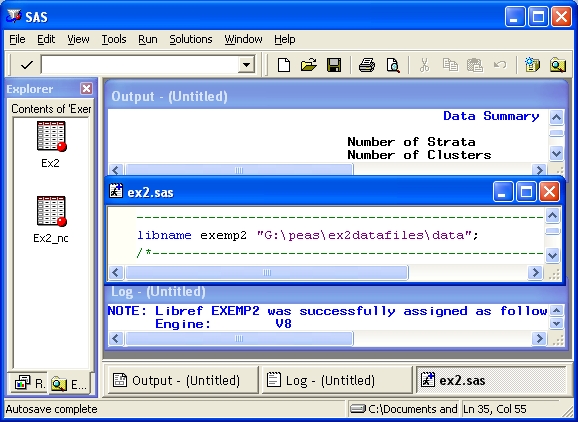
Step 5: Now highlight the next bit of code (include title)
to RUN;. Submit this and check that it has worked by
checking the log and output .
Step 6: Carry on running the rest of the program, following the instructions in the code which are inserted as SAS comments that usually show in green.
Step 7: To see what all your results should look like click on
this results file:
ex2ressas.htm.
To find out more about the SAS package click here.